Switching Between Companies / Workspaces
Planir is built to handle multiple businesses and multiple parent organizations from a single login. This article shows how to switch between companies (entities) and between workspaces (parent organizations) so you can move between contexts without losing your place.
Why this matters
If you are an accountant managing several clients, a CFO overseeing multiple subsidiaries, or a consultant working across different firms, you will spend time moving between separate sets of financial data. Planir keeps each company's data fully isolated, but lets you switch between them in one click. Knowing which level you are switching at (workspace or company) saves time and prevents you from accidentally editing the wrong entity.
When to use this
- When working through a monthly close across several client companies
- When comparing performance between two entities you both have access to
- When jumping between a parent firm's workspace and a separate firm's workspace
- When a teammate asks you to look at a specific company in your shared workspace
Before You Start
Make sure you have:
- Access to more than one company or workspace (otherwise the dropdowns will only show your single context)
- A clear idea of which level you need to switch at (the company you are working on, or the parent organization itself)
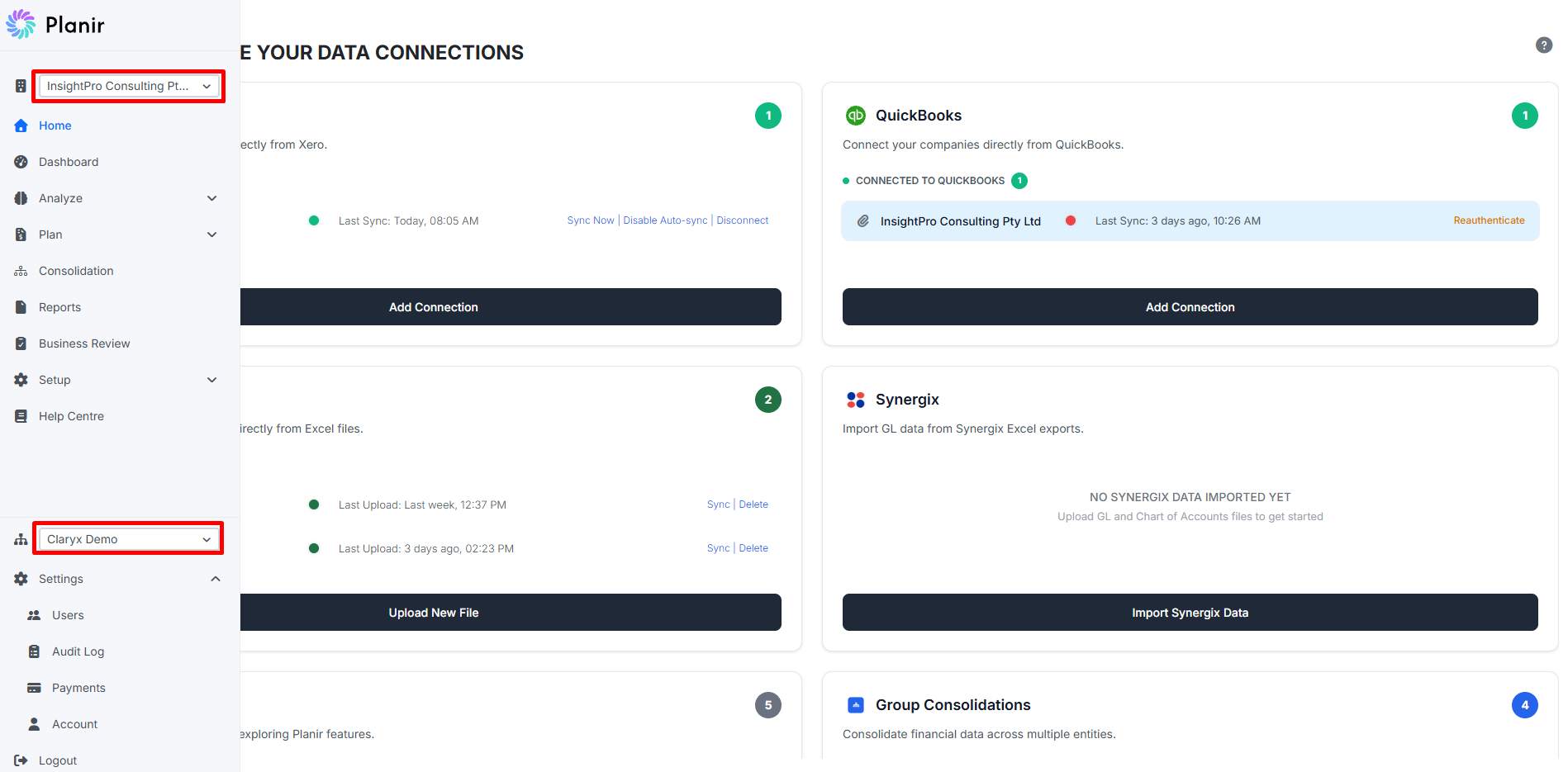
Step 1. Understand the Hierarchy
Planir has two levels of context, and each has its own switcher in the sidebar.
| Level | What it is | Switcher location | Example |
|---|---|---|---|
| Workspace (parent) | The parent organization, firm, or company group using Planir. Holds all your companies and users. | Bottom dropdown in the sidebar (above Settings) | "Planir" |
| Company / Entity | An individual business that lives under a workspace. Each company has its own data, dashboards, reports, and settings. | Top dropdown in the sidebar (above Home) | "InsightPro Consulting Pty Ltd", "Roger's SaaS Company", "Test Company" |
You can switch the company without changing the workspace. Switching the workspace changes the entire context, including the list of companies you can pick from.
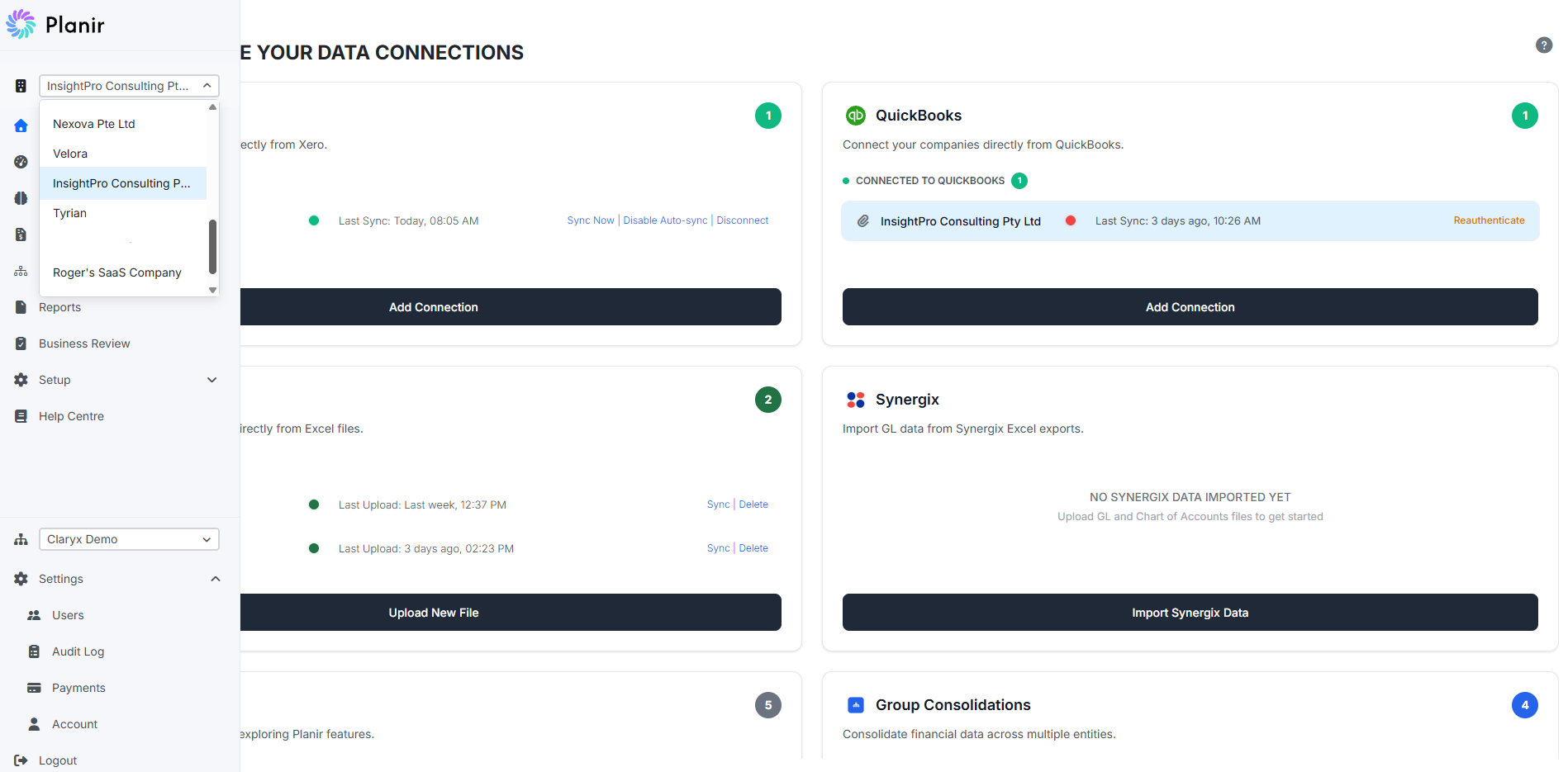
Step 2. Switch Between Companies (Entities)
Most day-to-day switching happens at the company level.
- Click the company dropdown at the top of the sidebar.
- The dropdown opens and lists every company you have access to within the current workspace.
- Click the company you want to switch to.
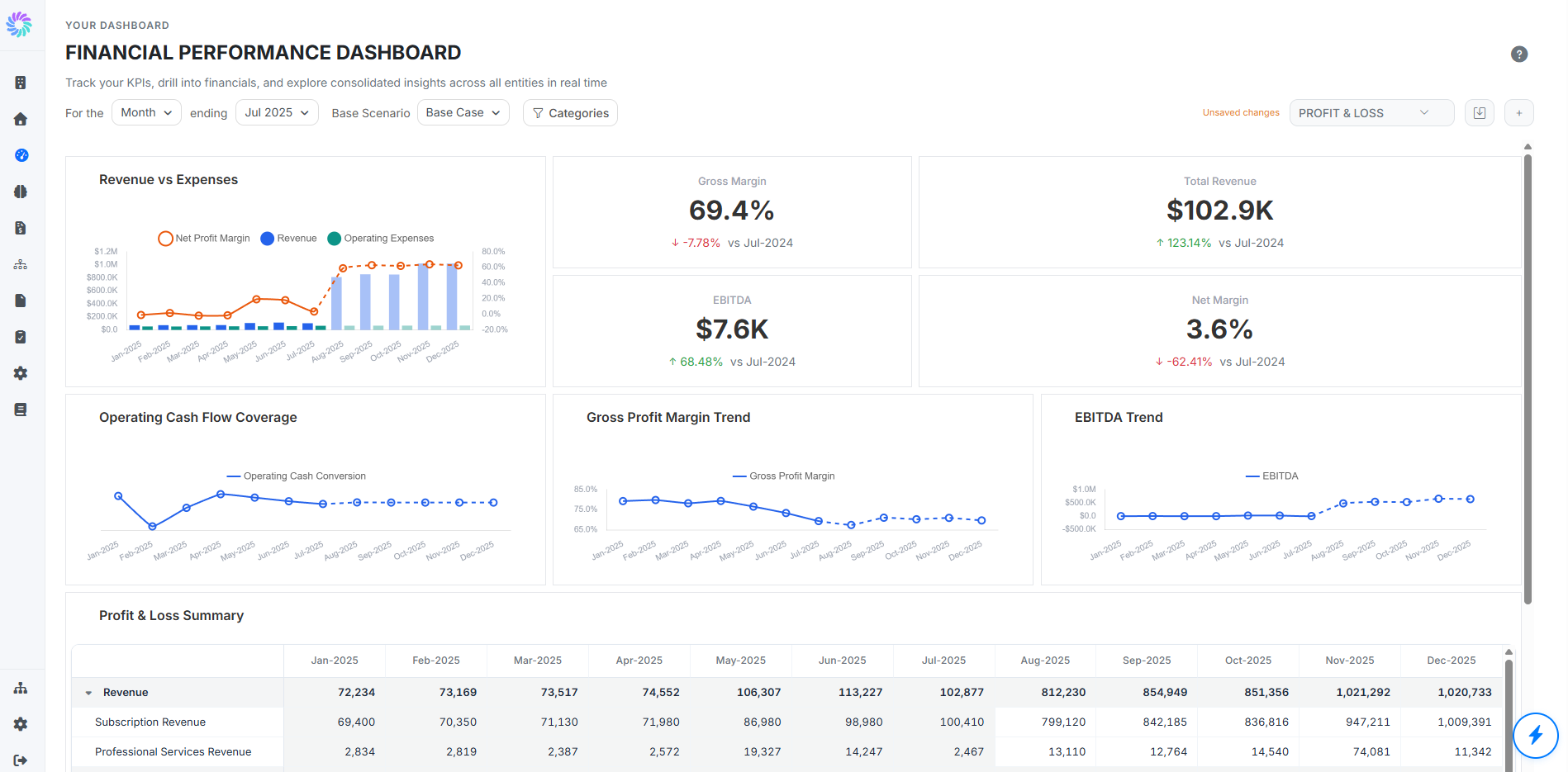
The page refreshes immediately with the new company's data. The fastest way to confirm the switch worked is to look at the Dashboard: every KPI tile, chart, and summary table reloads to show the selected company's numbers.
The company you select stays active across every page in Claryx.ai (Dashboard, Plan, Analyze, Reports, and so on) until you switch again.
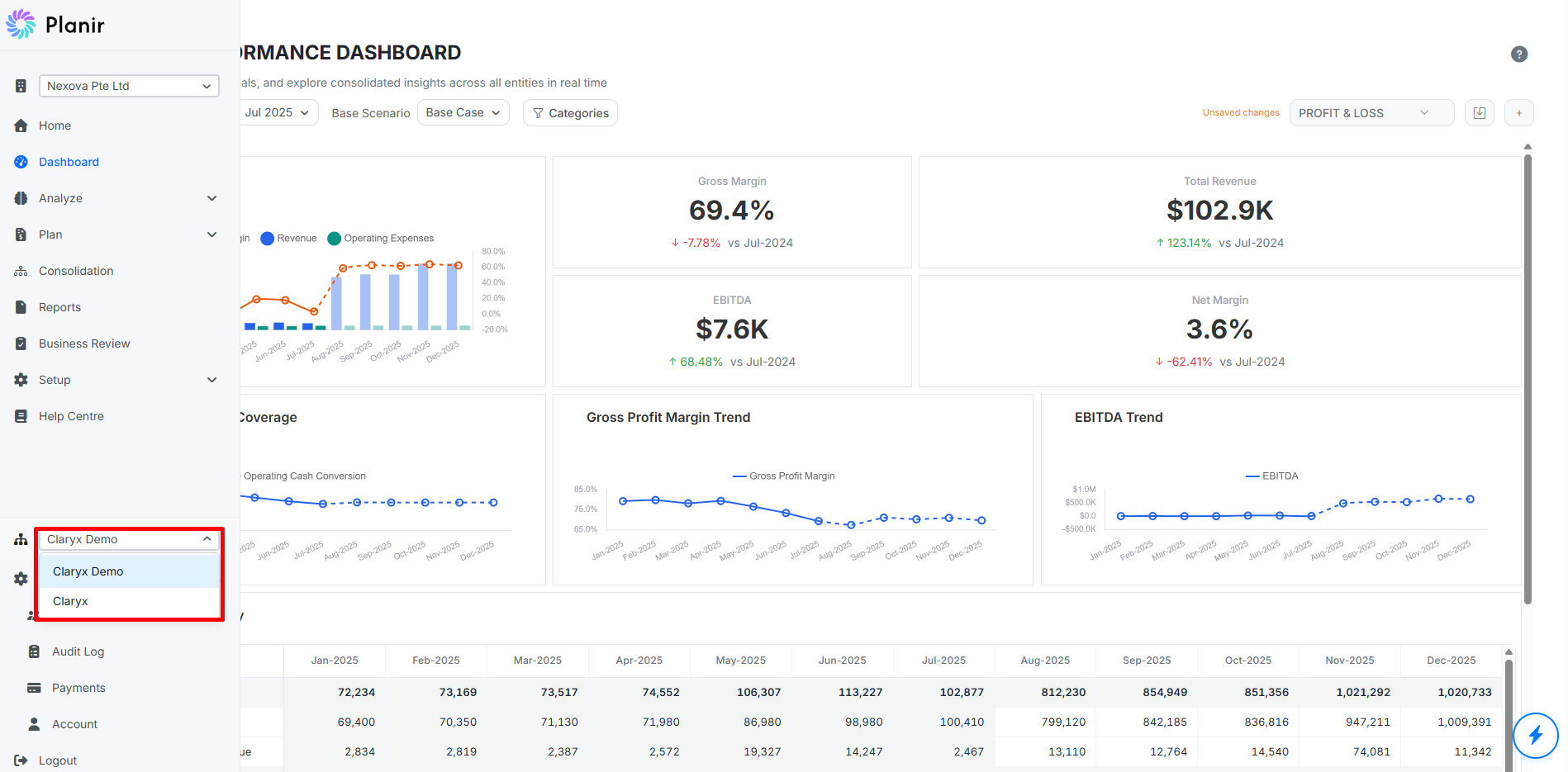
Step 3. Switch Between Workspaces
If you belong to more than one workspace (for example, you are an external accountant who has been added to two separate firms' Claryx.ai accounts), use the workspace dropdown to move between them.
- Click the workspace dropdown at the bottom of the sidebar (above Settings).
- The dropdown opens and lists every workspace you belong to.
- Click the workspace you want to switch to.
The whole interface reloads under the new workspace. The list of companies in the top dropdown updates to reflect what is available there. Settings, users, and integrations all become workspace-specific from this point on.
If you only belong to one workspace, the dropdown will only show that one option, and Step 3 will not apply to you.