Setting up Company Information
Configure your company details and choose which KPIs feed your Business Review page so Planir's reports, insights, and AI summaries are tailored to your business.
Why this matters
Planir uses your company information particularly your industry to shape the relevance of its analytics, benchmarks, and AI-generated summaries. The KPIs you select on the Business Review tab determine which numbers Planir foregrounds in your recurring Business Review. Together, these settings make sure the insights you see are aligned with how your business actually operates.
When to use this
- Right after connecting your first data source
- When your industry or sub-industry changes
- When you want to tailor the KPIs that appear in your Business Review
- When you've added a new custom metric and want to surface it in the review
Before You Start
Make sure you have:
- A connected data source so your company name and fiscal year are pre-populated
- A clear view of your industry and sub-industry classification
- Any custom KPIs you want included in your Business Review already created in Setup → Metrics
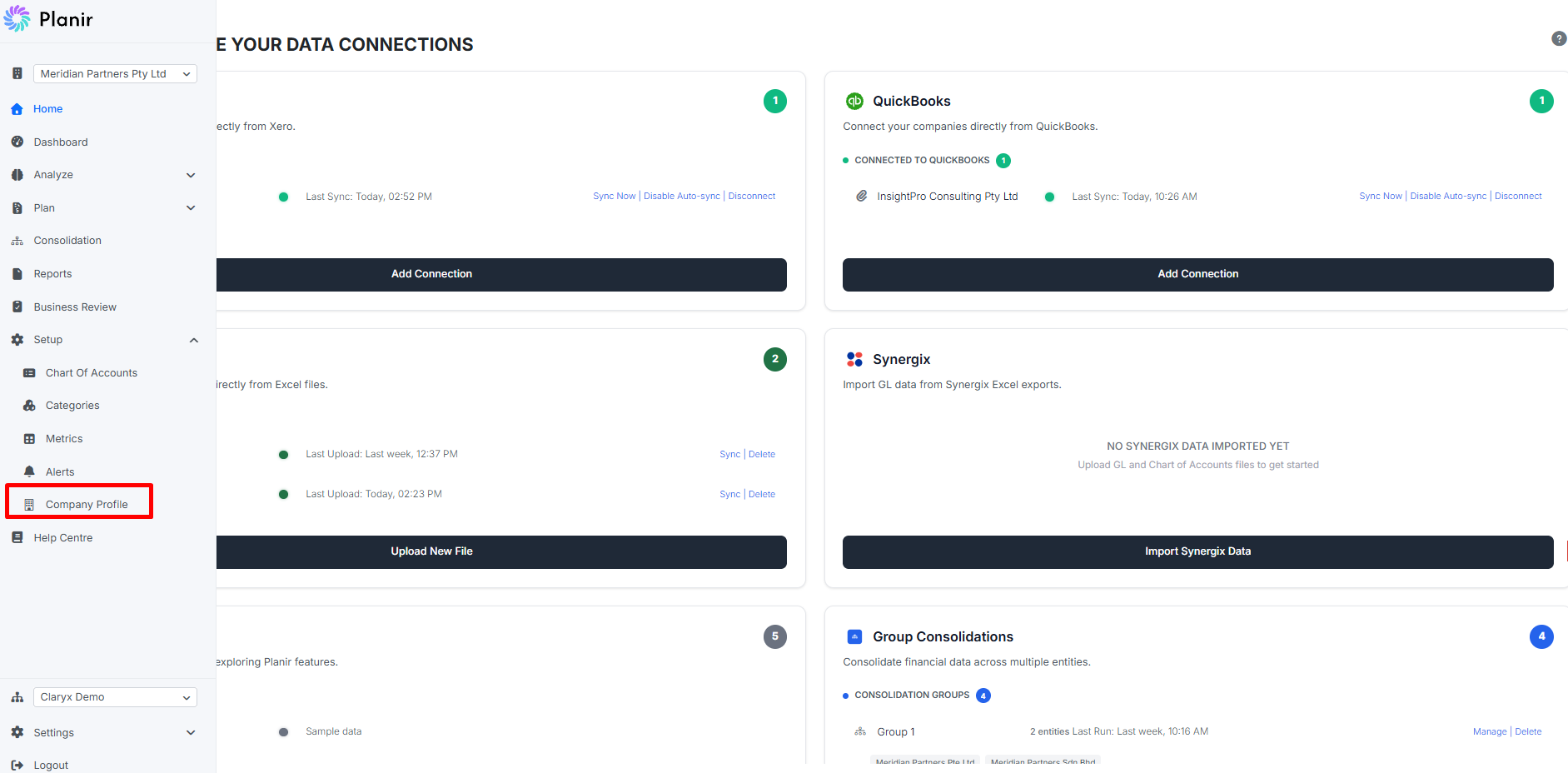
Step 1. Open the Company Settings Page
- From the sidebar, expand Setup.
- Click Company Profile.
The Settings page opens with two tabs: General Settings and Business Review Settings.
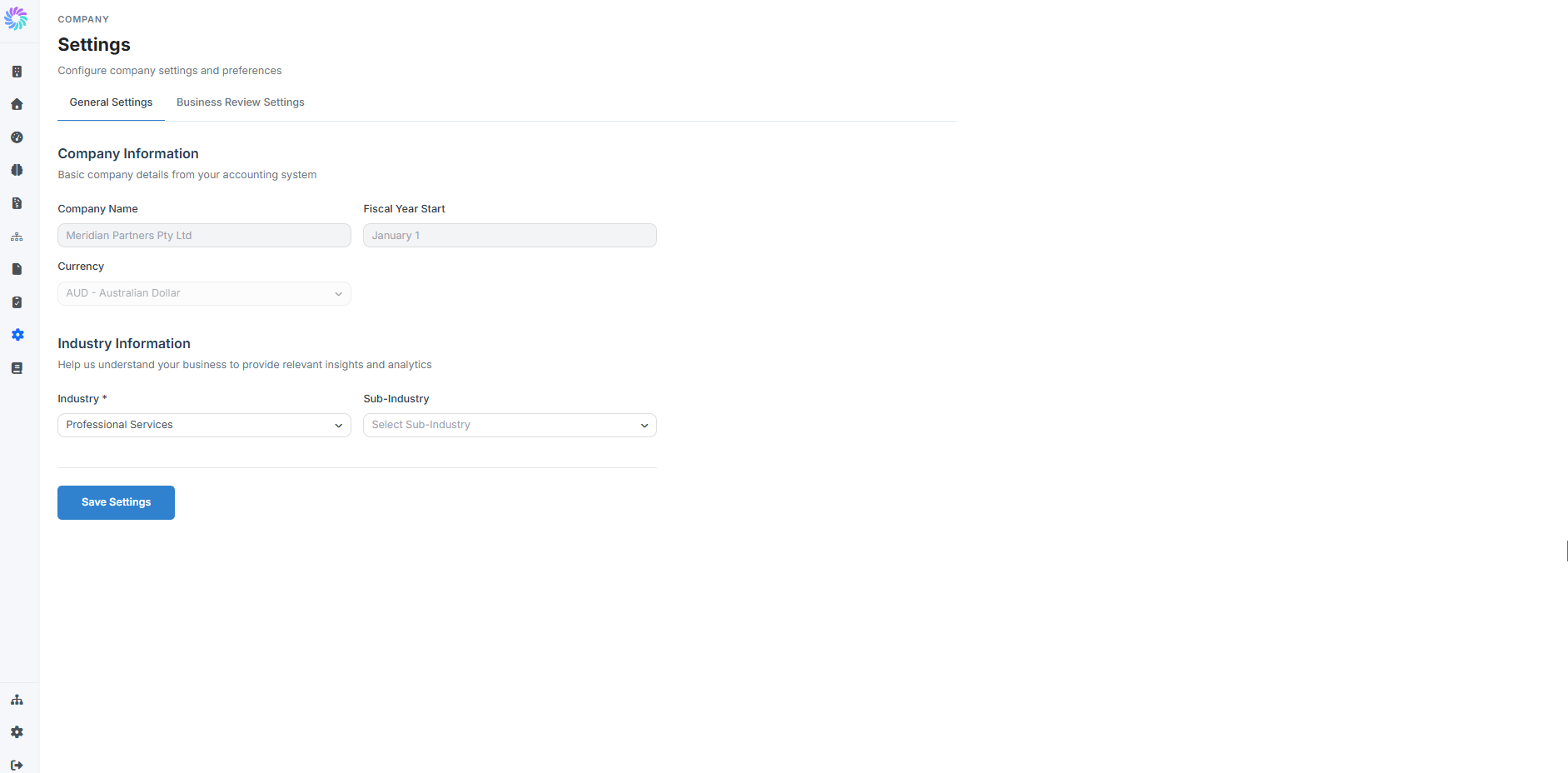
Step 2. Review Your Company Information
On the General Settings tab, the Company Information section displays the basic details pulled in from your accounting system:
- Company Name — pre-populated from your data source
- Fiscal Year Start — pre-populated from your data source
- Currency — set automatically based on your source, but editable if needed
If anything looks incorrect, you may need to update it in your source accounting system rather than here. The Company Name and Fiscal Year Start fields read directly from there.
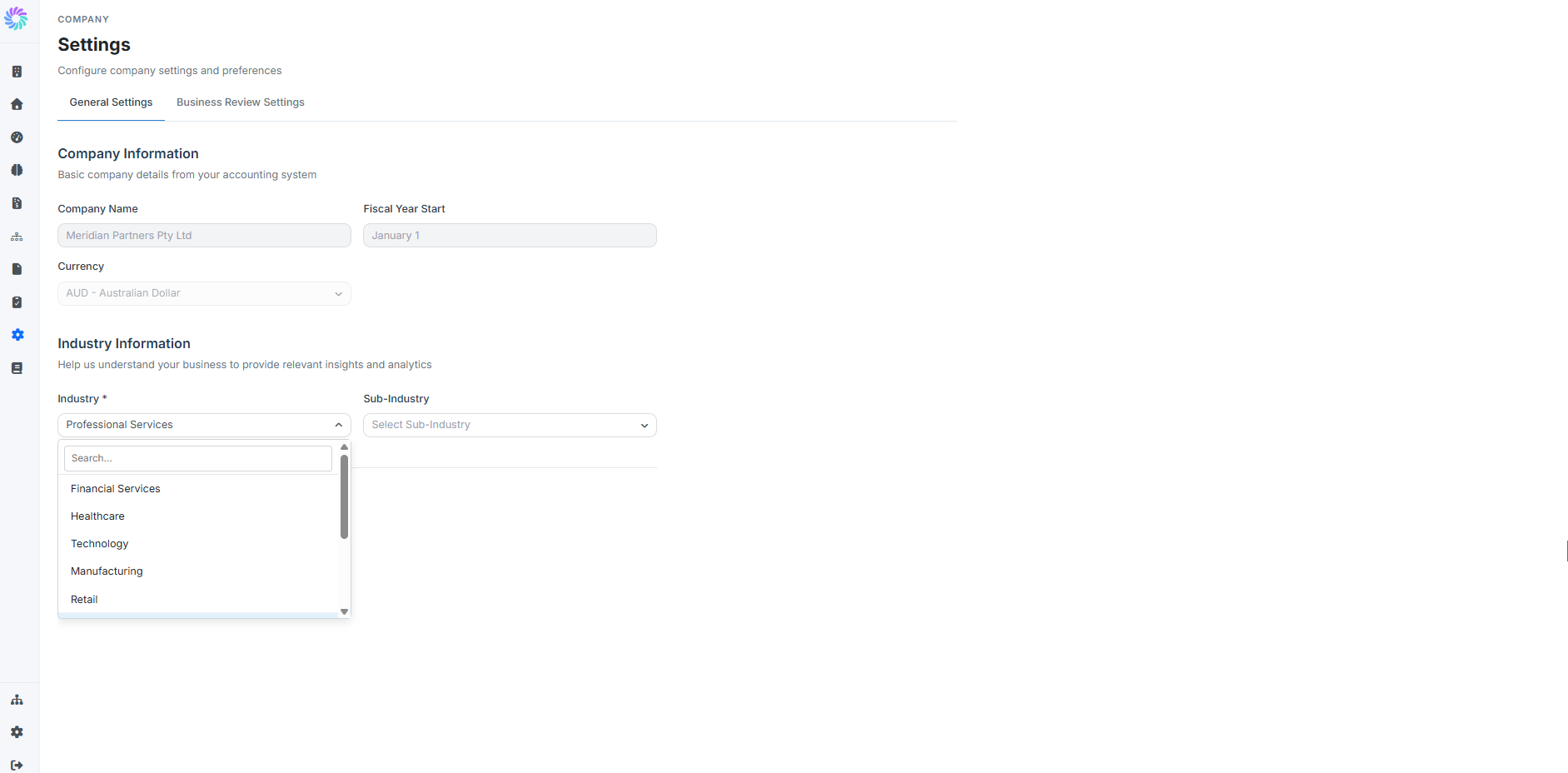
Step 3. Set Your Industry and Sub-Industry
The Industry Information section is where you tell Planir about your business so its insights and analytics can be tailored to your context.
- Click the Industry dropdown and choose the industry that best describes your business (e.g., Manufacturing, Retail, Professional Services).
- Click the Sub-Industry dropdown and choose the most specific match (e.g., Electronics, Apparel, Consulting).
Industry is required. You won't be able to save your settings until an industry is selected. Planir will display a "Please select an industry" message if you try.
Step 4. Save Your General Settings
Click Save Settings at the bottom of the General Settings tab to commit your changes. Planir will start applying your industry context to relevant insights from the next data refresh.

Step 5. Configure Your Business Review KPIs
Switch to the Business Review Settings tab to choose which KPIs feed your Business Review page.
The default KPI set typically includes:
- Gross Profit Margin
- Net Profit Margin
- Current Ratio
- ROE (Return on Equity)
- Cash Ratio
- Debt-to-Equity Ratio
You can tailor this list freely:
- Remove a KPI — click the × on any KPI chip
- Add a KPI — click the Add KPI dropdown and select any metric tracked in your workspace (including custom metrics created via Setup → Metrics)
- Reset to Default — click the Reset to Default button to restore Planir's recommended set
Step 6. Save Your KPI Settings
Click Save KPI Settings to commit your Business Review choices. The selected KPIs will appear on the Business Review page from the next time you generate a review.
Managing Your Company Settings
Update your industry
Return to Setup → Company Profile → General Settings any time your business focus shifts. Updating the Industry or Sub-Industry will change which benchmarks and insights Planir prioritizes.
Change your currency
If your reporting currency changes, update it on the General Settings tab and click Save Settings. Make sure the currency setting in your source accounting system is aligned to avoid mismatches.
Refresh your Business Review KPIs
Whenever you create a new custom metric, consider whether it deserves a spot in your Business Review. Add it on the Business Review Settings tab to surface it in the recurring review.
Restore defaults
If you've heavily customized your Business Review KPIs and want a clean slate, click Reset to Default on the Business Review Settings tab.
Your workspace is now configured with the right industry context, and your Business Review will surface the KPIs that matter most to your business.