Setting Up Alerts
Configure which Planir alerts are active in your workspace and decide who receives them by email. Alerts surface the moments that matter a KPI breaching its threshold, or new transactions flagged for review without anyone needing to open the app.
Why this matters
Your team can't watch every metric every day. Alerts let Planir do the watching for you and email the right people the moment something changes. Pairing the right alert with the right recipient group means the people who can act on a number are the first to know about it.
When to use this
- When you want to be notified the moment a KPI crosses its threshold
- When you want a summary of new transactions flagged for review
- When onboarding a new team member who should receive specific alerts
- When changing who's responsible for monitoring a particular metric
Before You Start
Make sure you have:
- Your KPIs already set up with targets and thresholds in Setup → Metrics (so KPI Threshold Breach alerts have something to trigger on)
- A list of the people who should receive each alert, including their email addresses
- Permissions to manage configuration in your Planir workspace
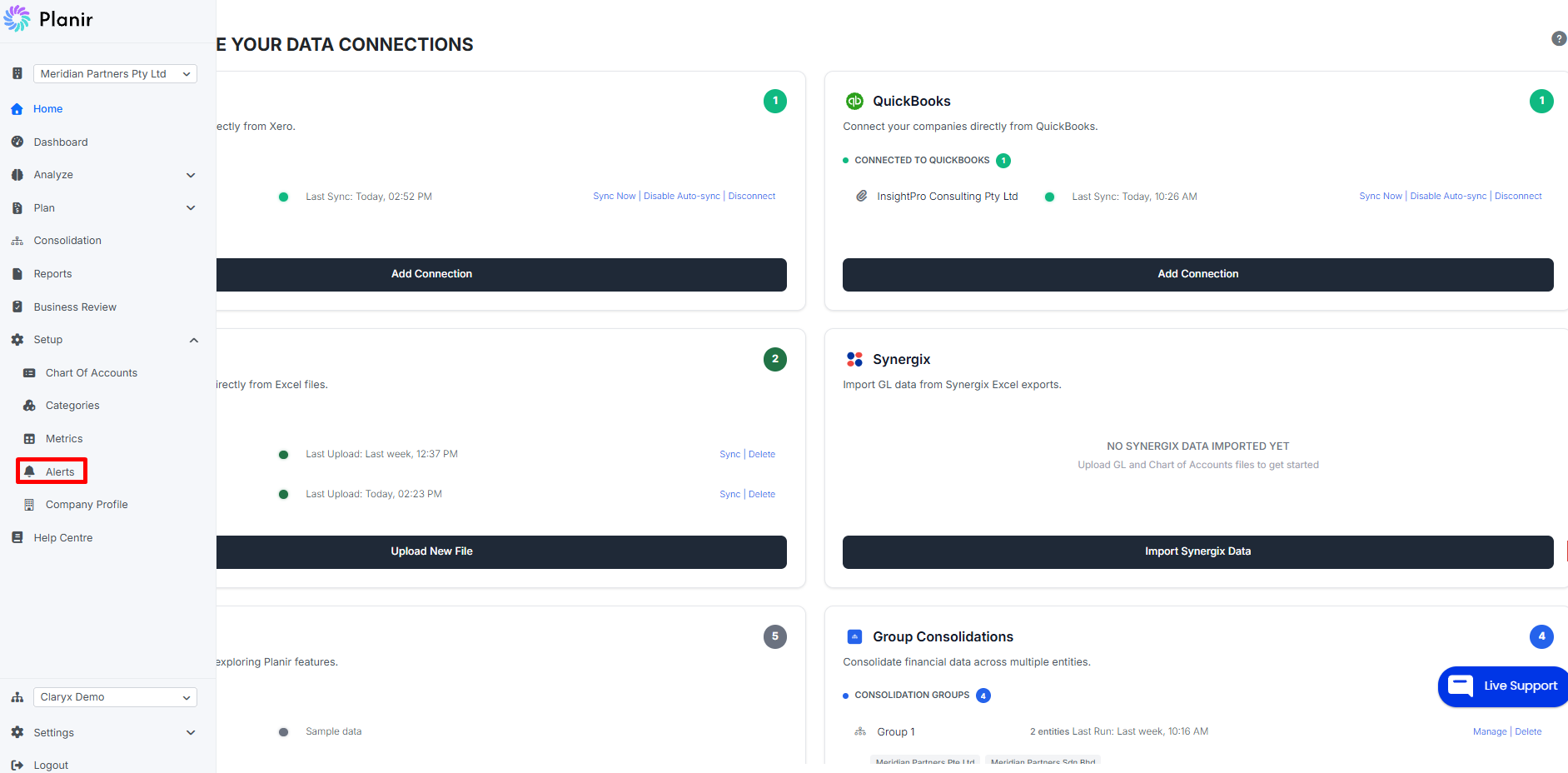
Step 1. Open the Alerts Page
- From the sidebar, expand Setup.
- Click Alerts.
The Alerts & Notifications page opens with two tabs: Notifications and Groups.
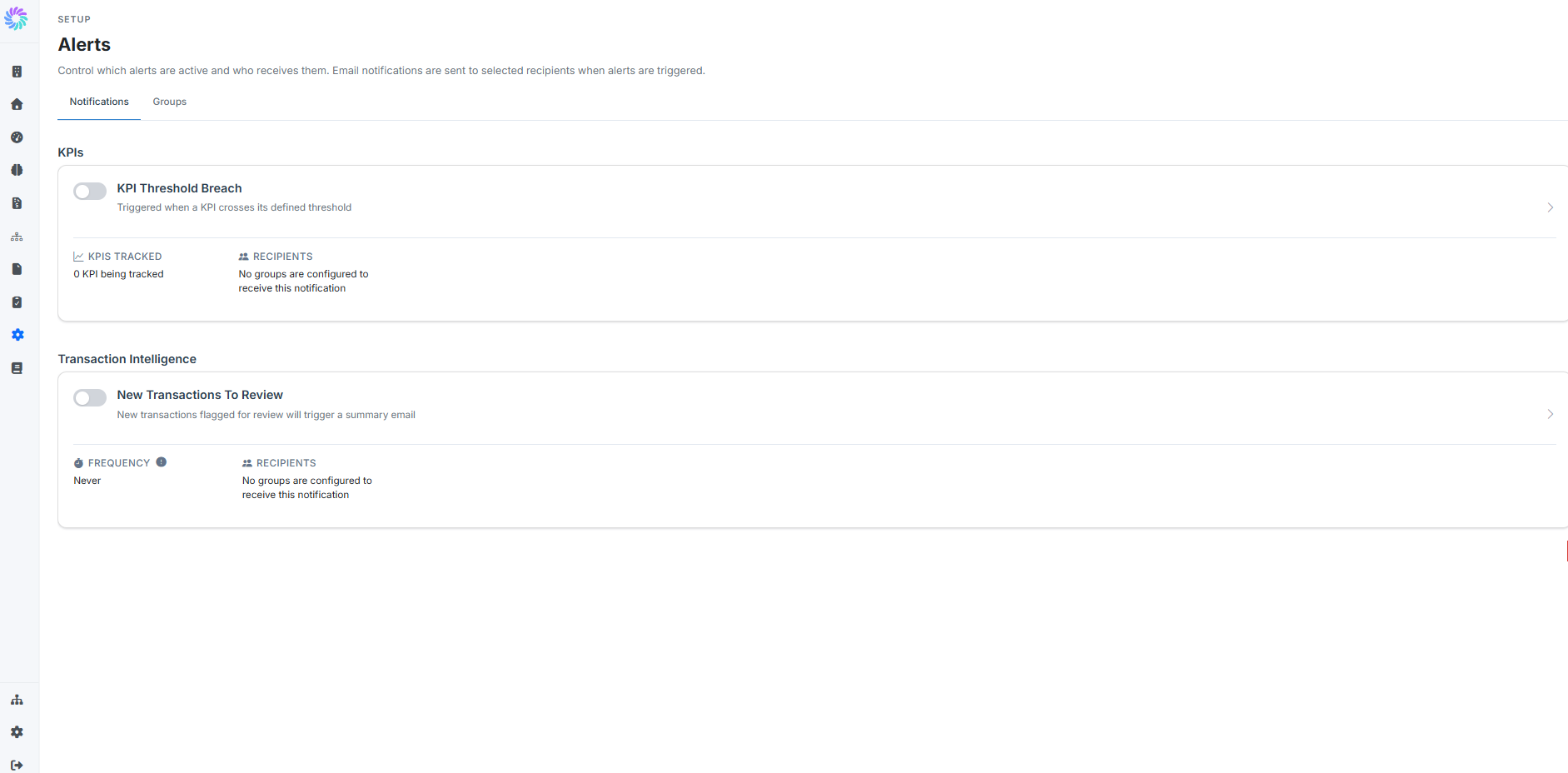
Step 2. Review the Available Alert Types
On the Notifications tab, Planir displays every alert type your workspace can send. Each alert card shows:
- A toggle to turn the alert on or off
- A short description of what triggers the alert
- A summary of how the alert is currently configured (e.g., how many KPIs are tracked, how often the email is sent)
- The recipient groups currently assigned
The two starter alert types are:
- KPI Threshold Breach — triggered whenever a KPI crosses the threshold you defined in Setup → Metrics. Useful for catching margin slippage, liquidity dips, or any custom metric you're tracking against a target.
- New Transactions To Review — sends a summary email whenever Planir flags new transactions for review (via Transaction Intelligence). Useful for keeping your finance team on top of unusual activity.
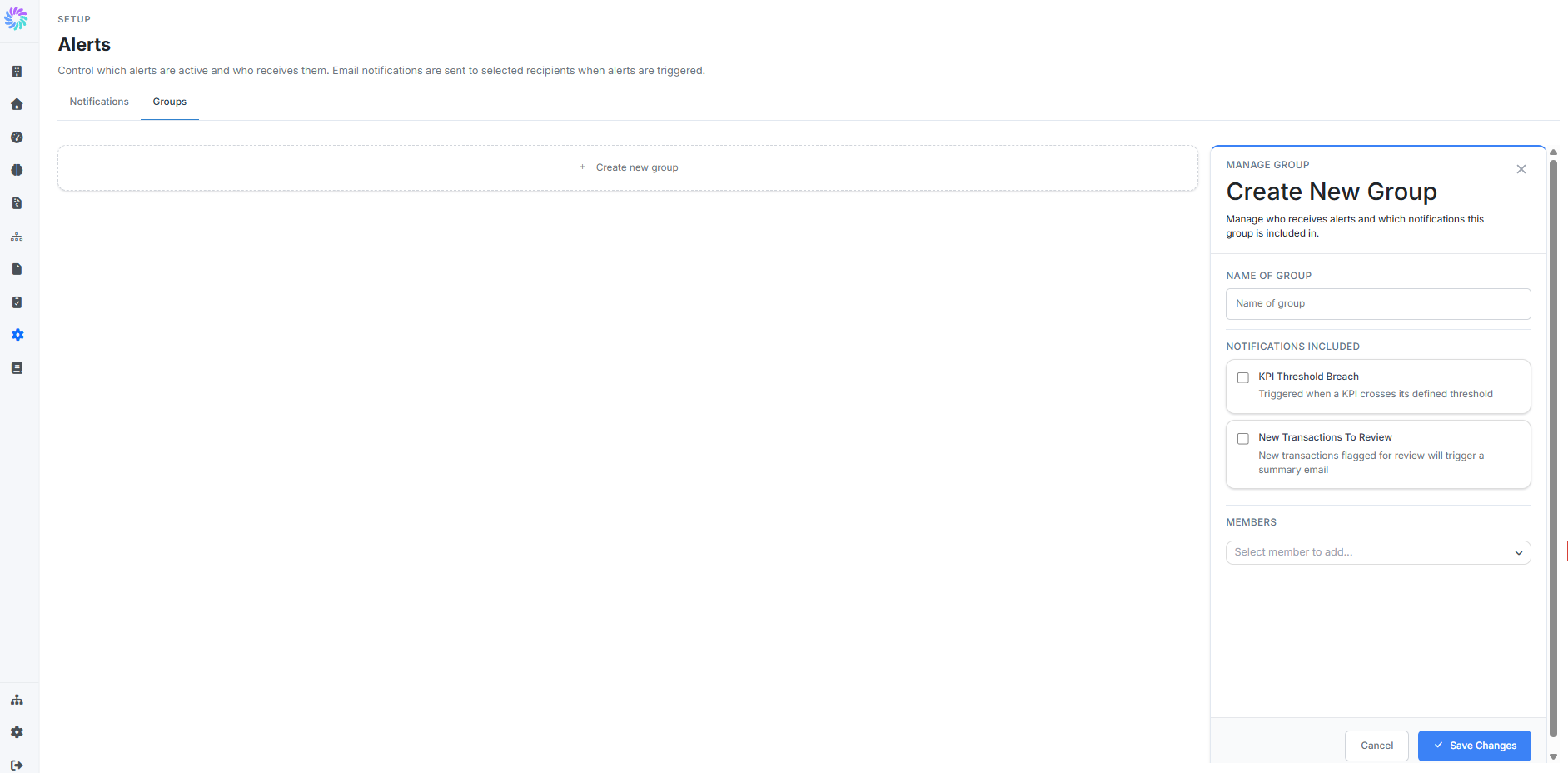
Step 3. Create a Recipient Group
Before you turn on an alert, set up at least one group of recipients to receive it.
- Switch to the Groups tab.
- Click + Create new group.
- In the Create New Group panel on the right:
- Enter a Name of Group (e.g., "Finance Leads," "Operations Team")
- Under Notifications Included, tick the alerts this group should receive
- Under Members, use the dropdown to select the team members to add
Click Save Changes.
You can create as many groups as you need for example, one group for KPI alerts going to your CFO, and a separate group for transaction reviews going to your accounting team.
Step 4. Enable an Alert and Assign a Group
- Return to the Notifications tab.
- Click into the alert you want to configure (e.g., KPI Threshold Breach) to open its detail view.
- Select which KPIs the alert should track (for KPI Threshold Breach) or set the email frequency (for New Transactions To Review).
- Assign one or more groups created in Step 3 as recipients.
- Toggle the alert on at the top of the card.
The alert is now live. Planir will email the assigned group(s) automatically whenever the trigger condition is met.
Step 5. Verify Your Setup
Back on the Notifications tab, each enabled alert should now show:
- The toggle in the on position
- The number of KPIs tracked or the chosen email frequency
- The names of the recipient groups under Recipients
If any alert still shows "No groups are configured to receive this notification," it's still effectively off — make sure to assign at least one group before relying on it.
Managing Your Alerts
Edit a group
Open the Groups tab and click the group you want to change. Add or remove members, change which notifications the group receives, then click Save Changes.
Pause an alert temporarily
Toggle the alert off on the Notifications tab. Your groups and configuration are preserved — you can switch the alert back on later without recreating the setup.
Add new KPIs to KPI Threshold Breach
Whenever you create a new metric in Setup → Metrics with a Target and Single Limit, return to the KPI Threshold Breach alert and add the new KPI to its tracked list so threshold breaches start triggering alerts.
Remove a recipient
If a team member leaves or no longer needs to receive an alert, remove them from the relevant group(s) on the Groups tab. Removing them from a group automatically stops their alert emails.
Example Scenario
You want your CFO and Head of Finance to be emailed any time Net Profit Margin or Operating Cash Conversion breaches its threshold.
- Open Setup → Alerts
- Switch to the Groups tab and click + Create new group
- Name the group
Finance Leads, tick KPI Threshold Breach under Notifications Included, and add your CFO and Head of Finance as Members - Click Save Changes
- Switch back to the Notifications tab and click into KPI Threshold Breach
- Select Net Profit Margin and Operating Cash Conversion as the tracked KPIs
- Confirm
Finance Leadsis assigned as the recipient group - Toggle the alert on
From now on, both leaders will receive an email the moment either KPI breaches its limit. No one needs to open Planir to spot the issue.