AI Assistant
The AI Assistant is a chat panel that lives on most pages in Planir. It pulls context from the page you are on and answers questions about the data you are looking at, with a set of suggested quick prompts for the page. On certain pages, the Assistant can also build or modify the page layout for you. Use it to get a written explanation of a variance, summarize action items, or ask a page to add a new chart, all without leaving the page.
Why this matters
The AI Assistant turns the Q&A you would normally do over Slack ("can you explain this number?") and the design work you would normally do in a layout editor ("can we add a free cash flow chart?") into a single chat box that sits on the page. Because it knows the period, accounts, and scenario you have selected, you do not have to repeat context in every prompt. Most users find it easiest to start with the suggested quick prompts and refine from there.
When to use this
- When you want a written explanation of what the page is showing, in plain English
- When you want a quick "what should I look at?" or "what should I action?" summary
- When you want to add, remove, or rearrange a chart or KPI on the Dashboard without manual editing
- When you are preparing commentary and want a starting paragraph you can edit
- When you want to explore a question quickly before deciding whether it is worth a deeper investigation
Before You Start
Make sure you have:
- Connected data sources for the period and entity you want to ask about
- The right scope set on the page (period, comparison, accounts, scenario), since the Assistant uses the active page settings as context
- A clear question in mind, since the more specific the prompt, the more useful the answer
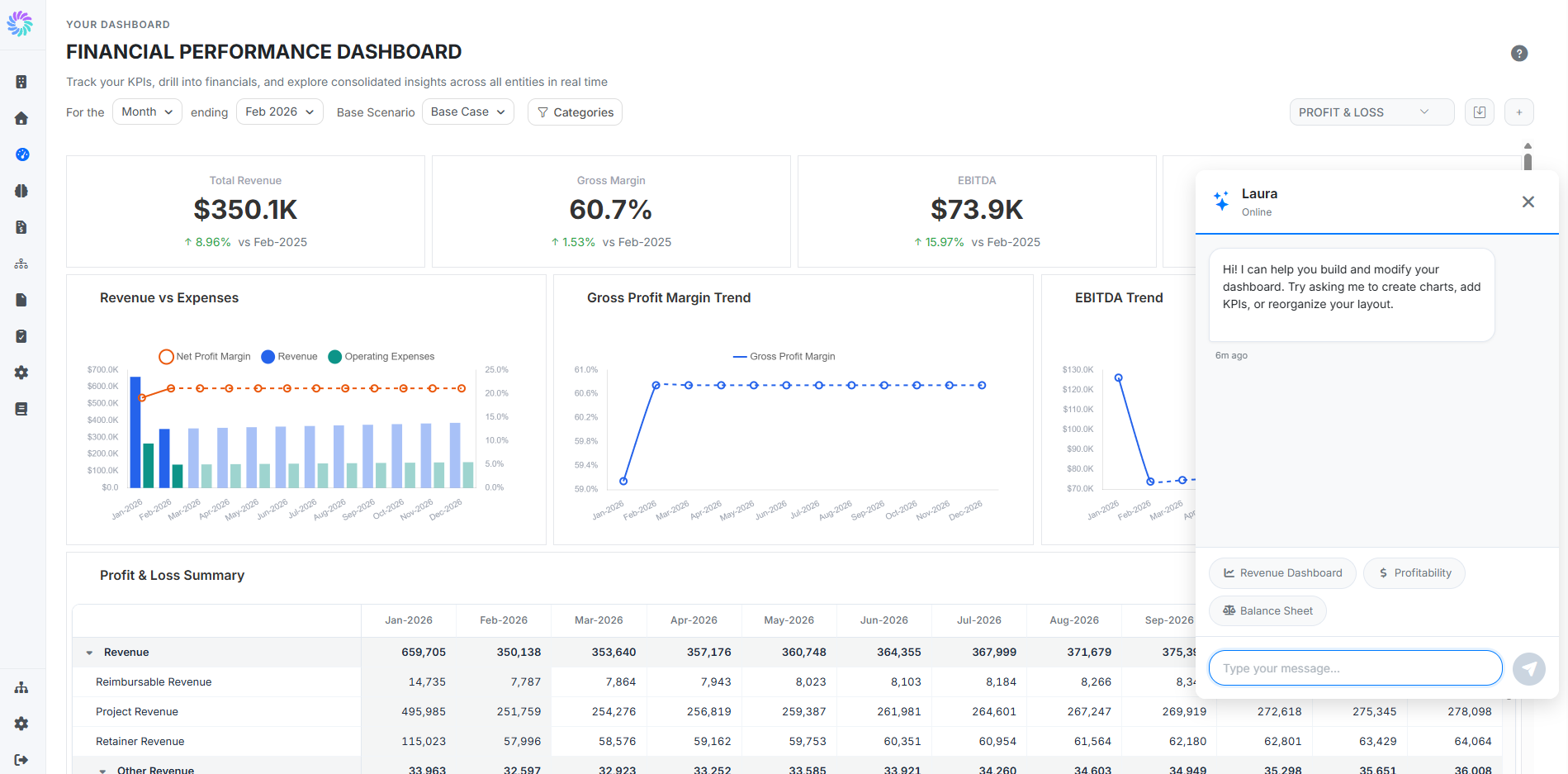
Step 1. Open the AI Assistant
Click the lightning bolt icon in the bottom right corner of the page to open the AI Assistant panel. It is available on:
- Dashboard (Your Dashboard)
- Executive Summary (Analyze)
- Account Intelligence (Analyze)
- Transaction Intelligence (Analyze)
- Profit & Loss Statement (Plan)
- Balance Sheet (Plan)
- Activity Forecast (Plan)
The panel slides in from the right and shows a greeting that adapts to the page you are on. A small red badge on the icon indicates the number of context-specific suggestions waiting for you.
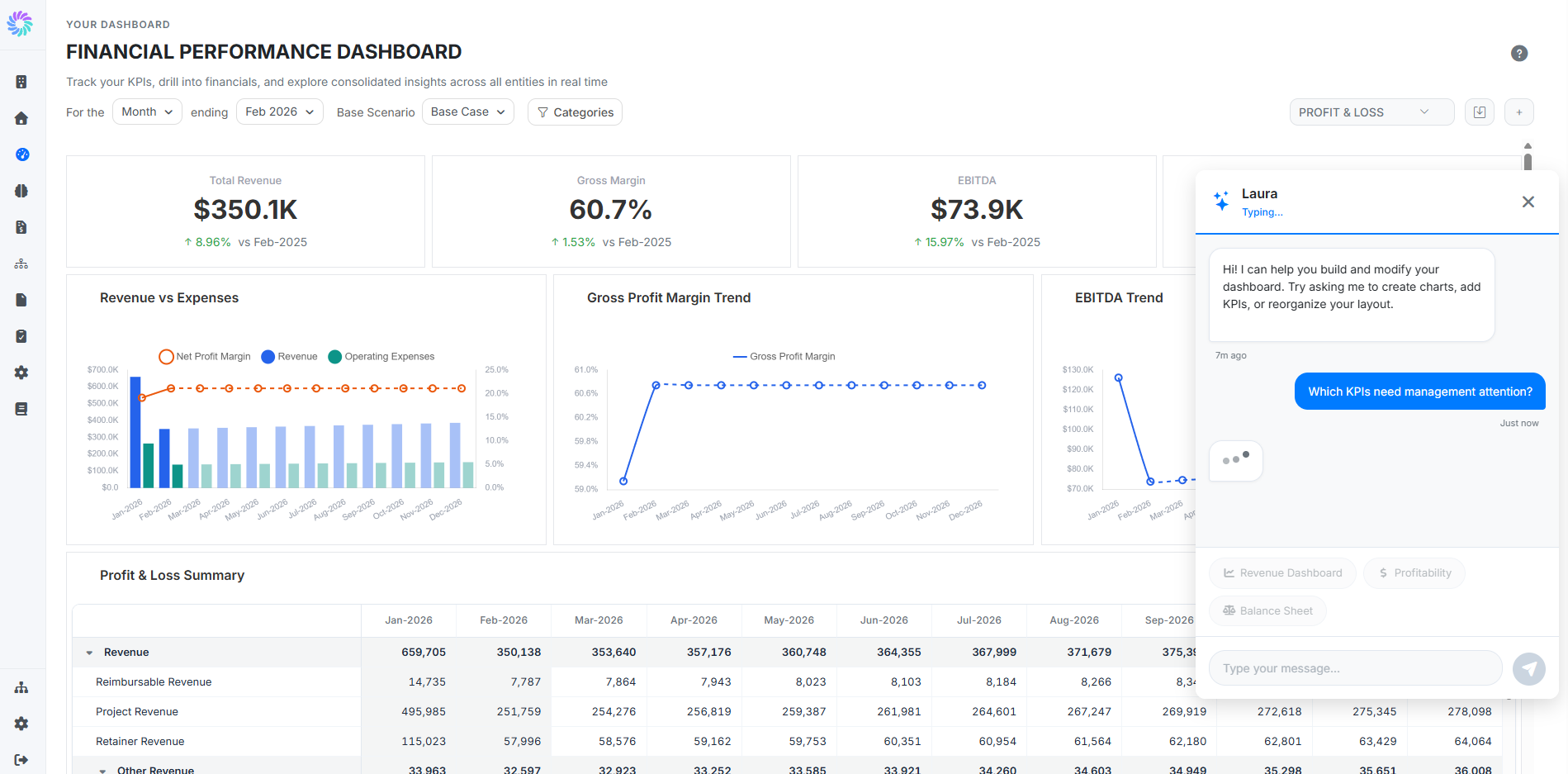
Step 2. Send a Prompt
You can interact with the AI Assistant in two ways:
- Quick prompts: click one of the suggested buttons at the bottom of the panel. The buttons adapt to the page (for example, Revenue Dashboard, Profitability, Balance Sheet on the Dashboard, or Account Health and Action Items on Account Intelligence).
- Custom prompts: type your question in the Type your message field and click the send icon. The panel shows a typing indicator while the response is generated, then streams the answer back into the chat.
The Assistant uses the active page settings (period, comparison, accounts, scenario) as context, so you do not need to restate the period or scope in your prompt.
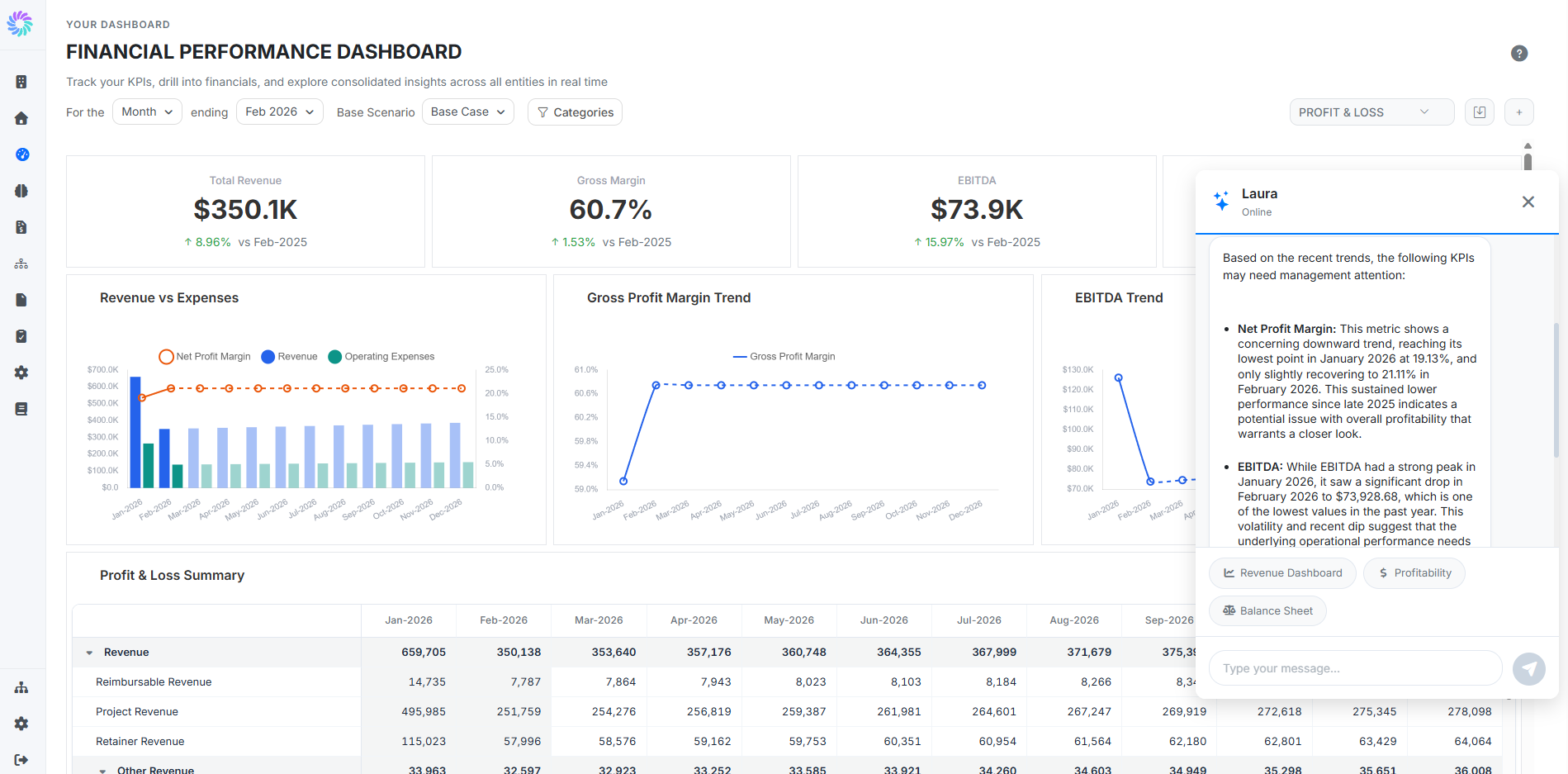
Step 3. Read the Response (Q&A on Every Page)
On every page where the Assistant is available, you get a written response in the chat. Responses are formatted with headings, bullets, and bold figures, so you can paste them into a document with minimal cleanup. The greeting at the top of the panel adapts to the page (for example, "Hello! How can I assist you today?" on Account Intelligence, or "Hi! I can help you build and modify your dashboard. Try asking me to create charts, add KPIs, or reorganize your layout." on the Dashboard).
Use the copy icon at the top right of any reply to copy the response text, useful for pasting into board commentary, an email, or a comment on the Variance Analysis page.
Step 4. Apply Layout Changes (When Supported)
On pages that support layout editing (such as the Dashboard), the Assistant can build and modify the page itself in addition to writing a chat response. When you send a prompt, the page updates live as the Assistant runs, with new charts and KPIs appearing in place.
After changes are applied, an Unsaved changes indicator appears in the page header. Save the new layout to keep it, or refresh the page to discard the changes.